Once a document is Checked In or Published or Checked In as Draft, FileEazy lets you perform further actions to the document.
- Replace a document
Once a document is added you can click in the ‘Upload Document’ section…
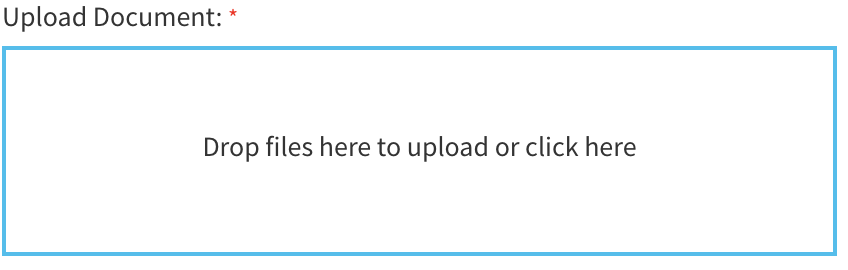
You can click or add another document in this section. You will receive a confirmation message ‘Do you want to replace the current document with this one?’. Click Ok to replace the document. Click on the Save button to save the replaced document. The document will be saved as a new version. The older document will be stored as a previous permission.
You can use the tab which is above the preview of the document tab to view the previous version of the document.
- Edit the Indexing info
Once a document is added, you can change the indexing field information or the Department or Document Type. Please note when changing a Document Type, you will lose previous indexing field information. - Add notes to a document
You can also Add Notes to a document. To add a note, click on the tab above the ‘Document Preview’ pane.
Click the ‘New note’ icon to add a new note. The Notes window will be launched.
The Notes windows lets you type a custom note using the feature rich text editor.
|
|
Use this option to search notes added to a document. The searched word is also highlighted. |
|
|
Use this option to add a voice note. |
|
|
Use this option to link existing documents added in File-Eazy to your notes. |
|
|
Use this option to add new documents and link them to the note. |
|
|
Use this option to preview any voice note or documents linked to this note. |
|
|
Use this option to save a note. |
|
|
Use this option to close the dialog |






- View Previous version of a document
You can use the tab which is above the preview of the document tab to view the previous version of the document.
 - Document Top - right action bar
|
|
|
|
|
Use this option to assign a Workflow to the document |
|
|
Use this option to tag a user to the document |
|
|
Use this option to check the File Tracking Report for the document |
|
|
|
|
|
Use this option to Merge another PDF with the currently added PDF |
|
|
|
|
|
|